How to Install Google Wallet on ANY Rooted Android Smartphone or Tablet!

Download this video for viewing in HD on your smartphone or computer.
Click Here to Download High-Quality HD video to your Smartphone or Computer.

This video was brought to you by AndroidRoot.org. Click Here to See at AndroidRoot.org
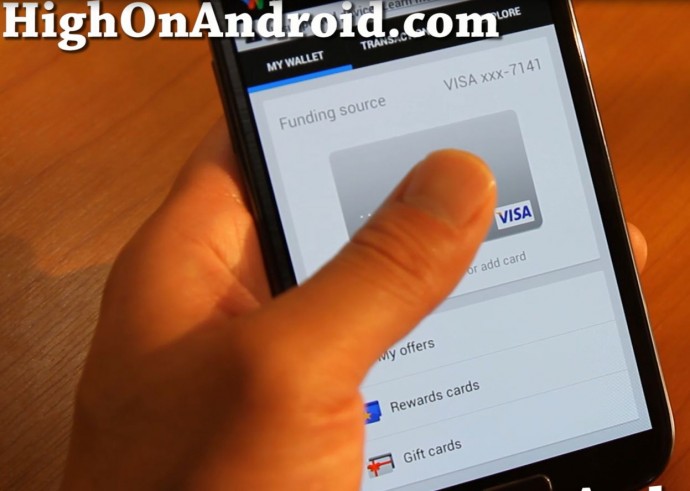
For those of you with one of the latest Android smartphones/tablets that have NFC but cannot use Google Wallet (such as any AT&T, T-Mobile, or Verizon phones), here’s how to install Google Wallet.

Why do you need Google Wallet?

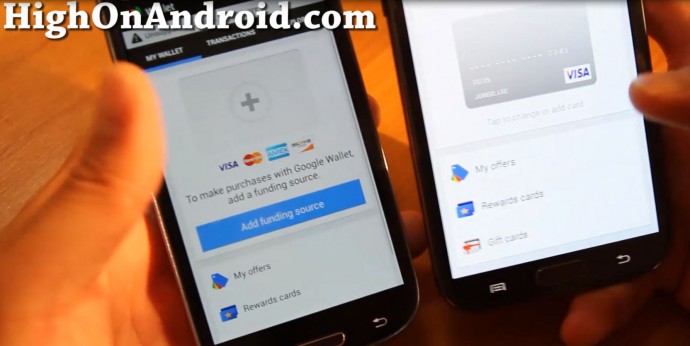
Google Wallet is an NFC-enabled credit card payment system for those of you who don’t know.  Many credit card systems around the world now support NFC-enabled credit cards and Google Wallet, meaning you don’t have to carry your credit cards anymore, just your smartphone.  It’s a great way to pay for things, and much faster than swiping your credit card.

Before we begin, you will need the following things:

1. A smartphone or tablet with NFC. (Such as Galaxy S3, Note 2, Note 10.1, One X, etc…etc…)
2. Rooted with an AOSP custom ROM installed such as CM10, CM10.1, AOKP, LiquidSmooth ROM, etc…etc… Will not work on TouchWiz, Sense, non-AOSP ROMs (without additional hack but that’s outside scope of this tutorial).
3. Make sure you’ve signed into Google Wallet at least once either on your phone or computer. (If you are outside the U.S., you might have to use VPN on your computer and signed into Google Wallet at least once.) If you’ve never signed into Google Wallet, it might give you “hanging” problems while setting it up. Sign up at http://www.google.com/wallet/

If you have a rooted Android or tablet with an AOSP ROM installed, you are ready to begin!

Step 1. If you are outside the U.S., you will first have to enable U.S. Play Store.  If you are in the U.S., skip this step.

Step 2. Next, we will need to “trick” the Play Store into thinking we have a Nexus device such as Galaxy Nexus, which Google Wallet works on.

Before we do anything, let’s make a backup of our build.prop file, so you can restore your original build.prop file later if needed.

Also, MAKE A BACKUP ROM before preceding as this can potentially put you in soft-brick so you can easily recover your phone.

Download ES File Explorer app from the Play Store.
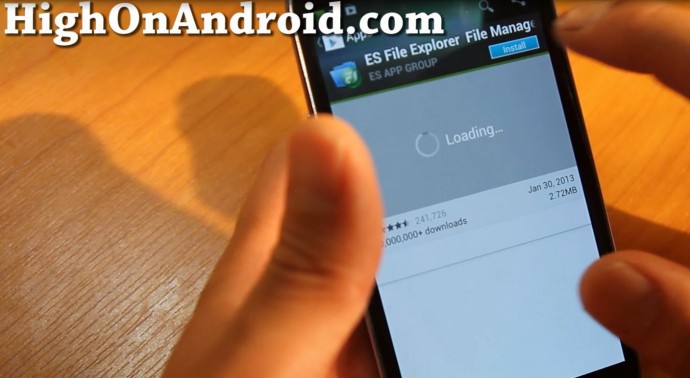
Step 2. Enable “Root Explorer”, “Up to Root”, and “Mount File System” in ES File Explorer settings.
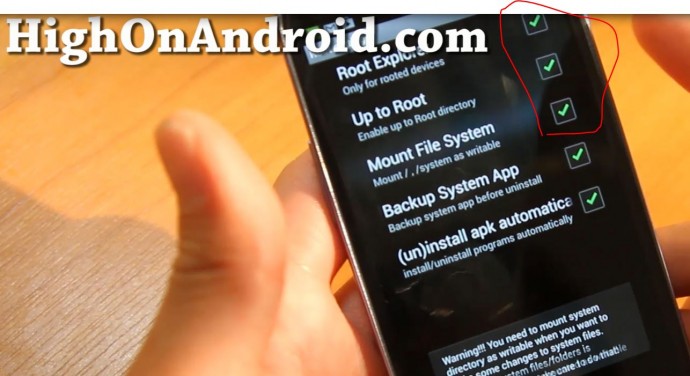
Step 3. Go to /system directory, copy the build.prop file.
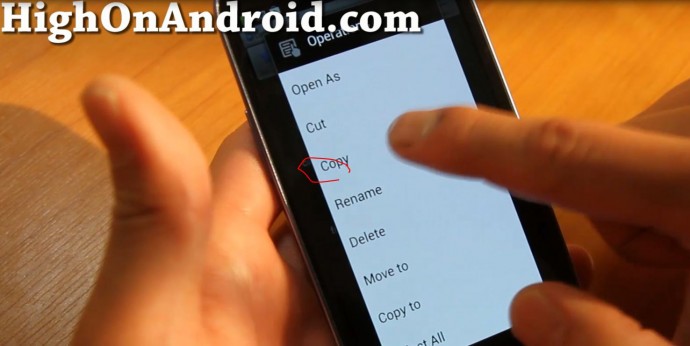
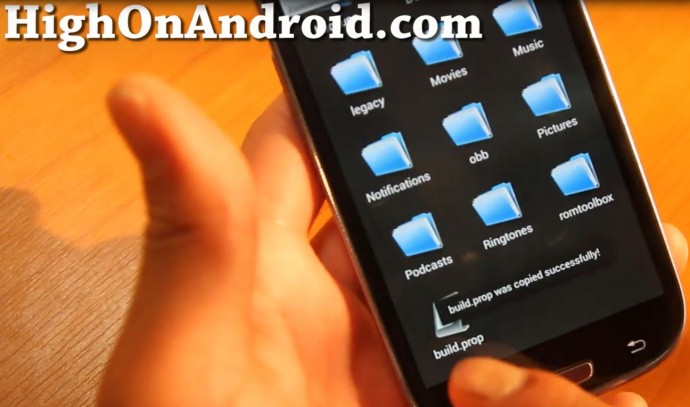
Step 4. Paste it somewhere safe such as your sdcard directory in /sdcard.  If you ever need to switch your device back from Galaxy Nexus, you can copy this backup file back into /system directory.
Step 5. Install Build Prop Editor app from the Play Store.
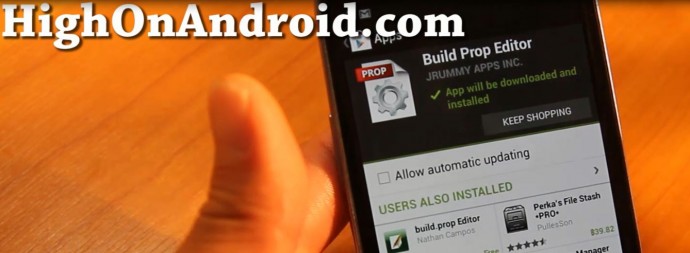
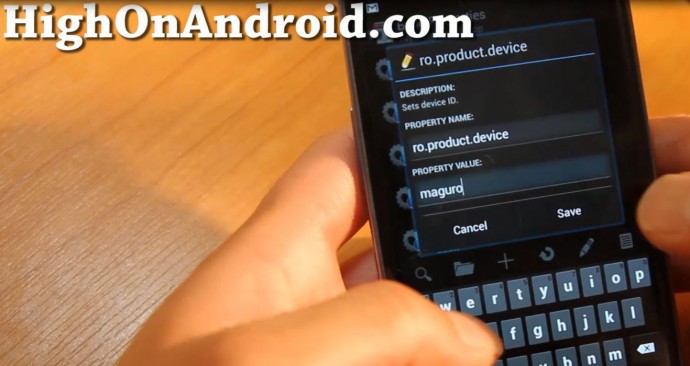
Step 6. Open Build Prop Editor app then set ro.product.device to “maguro”.
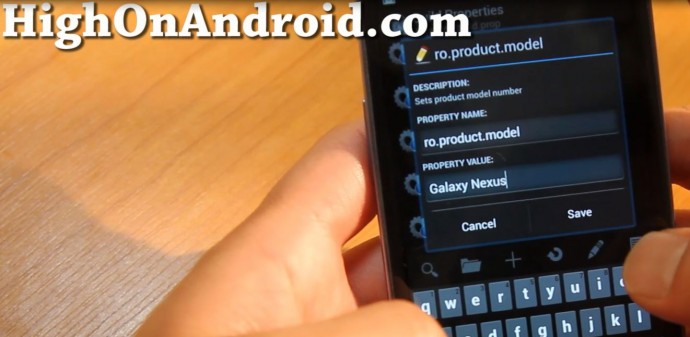
Step 7. Next set ro.product.model to “Galaxy Nexus”.
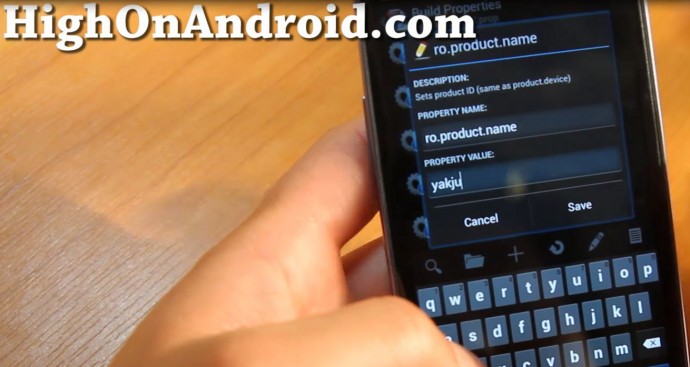
Step 8. Next, set ro.product.name to “yakju”.
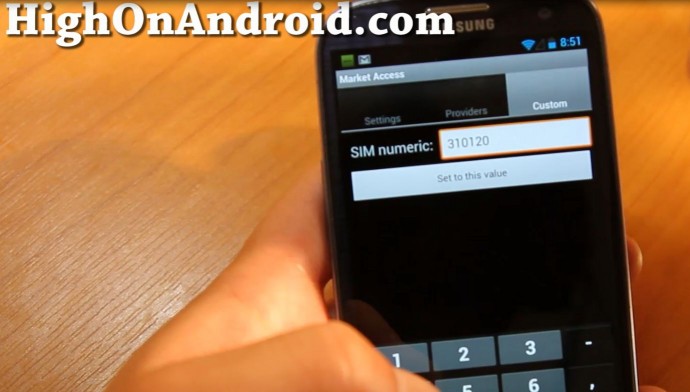
Step 9. Next, download and install Market Access apk file.  Then open the app, set Custom SIM numeric to “310120″, which is the SIM numeric for Sprint.  Since Sprint Android devices support Google Wallet out of the box, we will be able to download Google Wallet and also enable it on our Android device.
Step 10. If you are outside the U.S., make sure to turn your VPN or SSH Tunnel at this point.  If you are in the U.S. you can skip this step.
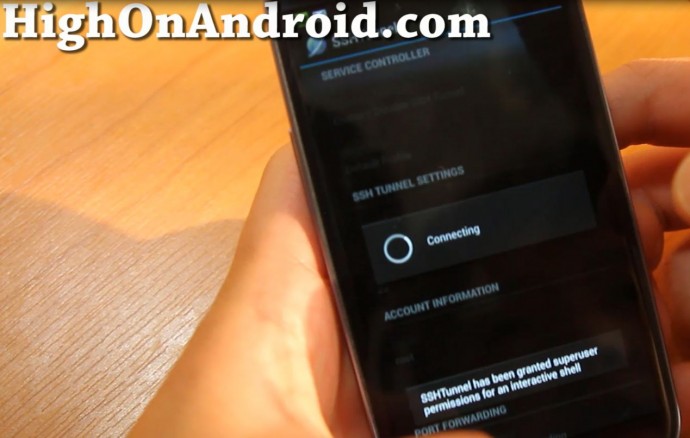
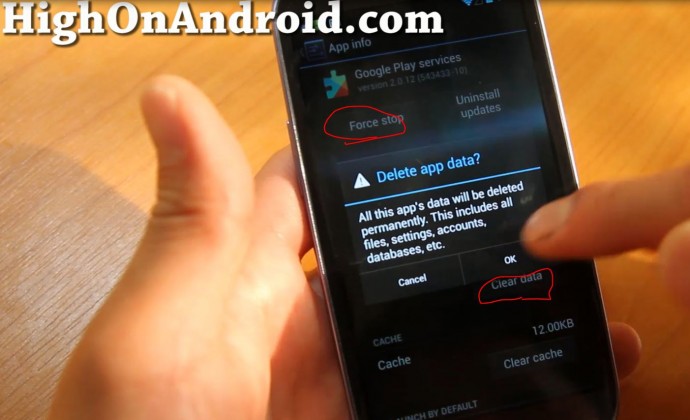
Step 11. Next we will need to reset Play Store so it will reset and recognize our phone as a Sprint Galaxy Nexus.  Go to Settings->Apps or Settings->Application Manager, then “Clear data” and “Force stop”.
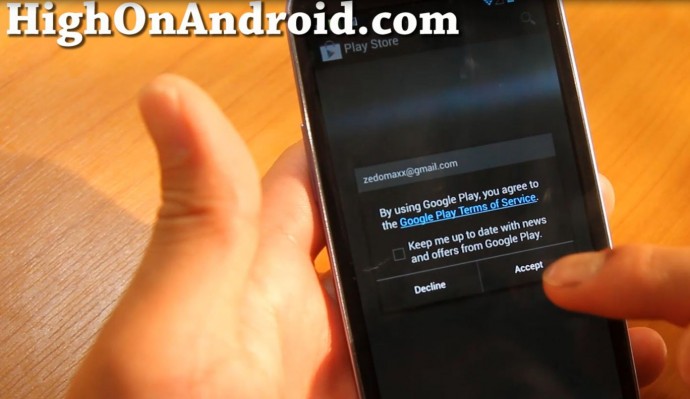
Step 12. Open Google Play Store and you should see a pop-up window welcoming you.
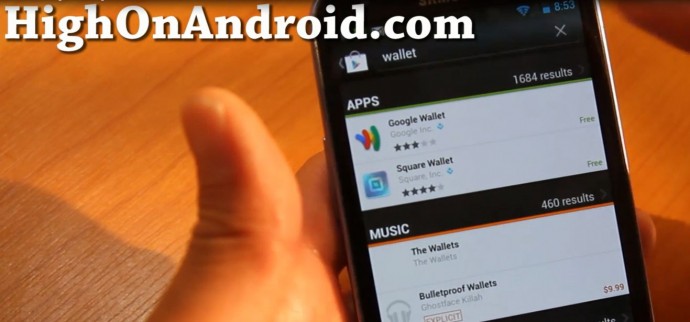
Step 13. You should now be able to see Google Wallet, congratulations!  Install it and enjoy!

Now, every time you reboot, you will need to make sure Market Access app is turned on to Sprint. (or you can set it on boot, set “Emulate on boot” checked ON in Market Access app to do this automatically)

This tutorial should work on 99% of Android smartphones or tablets out there.  There’s also easier ways to enable Google Wallet but I made this tutorial so you can apply it to any Android device universally.  I hope this has helped you get Google Wallet and enjoy the future.

Don’t forget to share this with your friends on Twitter, Facebook, and Google+!
Q&A
Q: My camera/video playback is broken!
A: This is caused by changing the build.prop values, just restore your original build.prop back. Whenever you need to use Google Wallet, you just need to switch your build.prop to Galaxy Nexus. Unfortunately, this is a hassle but you can still get Wallet to work.

Q: Can I copy build.prop back and will Google Wallet still work?
A: It may work for a bit but will not work for the long run.

My Tested Phones:

Galaxy S3 – Works perfect, no need to restore original Build.prop back.

Galaxy Note 2 – Works well but you need to restore Build.prop back to use Camera, video playback.

Testing more…

HighOnAndroid Facebook Page <--- If you like this post, please Like Our Facebook Page Here, thx!

Want to contact me?
Add me on:
GooglePlus
Facebook
Twitter
Want to stay updated on latest Android news and tips?
Sign up for our High On Android Newsletter here so you don't miss a single tip!

29 Responses to How to Install Google Wallet on ANY Rooted Android Smartphone or Tablet!

  1. Madroxcide says:

    Can’t make on DROID bionic ics

  2. davante says:

    hey max i foloowed your instructions how to install google wallet and i can confirmed it worked on touchwiz rom im running clean rom 4.5 which by the way you need to ad this and do a video on it its the best touchwiz rom out with no issues at all

  3. Luisitoner1 says:

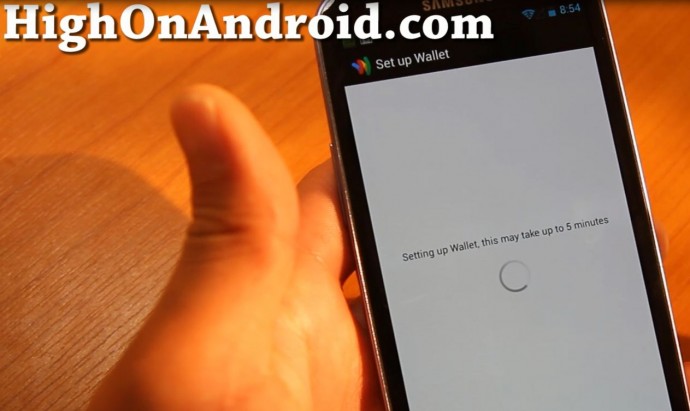
    It doesn’t work on Galaxy Note 1. It says, Setting up wallet for the last hour. I tried everything all over again and still showing, Setting up wallet it may takes up to 5 minutes.

    • Robert says:

      Were you able to make it worked? I have the same problem.

    • harrold says:

      whats the point?

      our notes have no nfc chip

      • pTeronaut says:

        The International note (N7000) doesn’t have NFC, but the North American LTE version (SGH-I717) does.

        What both phones don’t have, and but the two Samsung devices noted as working (S3 & Note II) do have is the ‘secure element’ that Google Wallet requires.

        It is possibly the lack of the Secure Element which is causing GW to hang on the the i717, and with the build.prop edit, GW believes that it is running on a device that has a Secure Element, and is continuously waiting for it to respond.

  4. Luisitoner1 says:

    By the way, I’m running CM 10.1

  5. Cedrick says:

    nfc settings are missing on off. how to make nfc permanently on note 2 tmobile 4.1.1

  6. L Martin says:

    ok did everything step by step. im using the AOKP rom Dl’d from your other site and when i reboot i get no sound at all. No sound as in everything . is there some problem with the prop build that is changing that or when i enter the values for market access. i changed it all back and i still get nothing. i reflashed and it restores but when i try to do the wallet hack or fix install again it does it all over again. I fanyone has had this problem and has found out a way to fix this please help me out.

    Thank You

  7. Jason says:

    Have the JellyBeans rom that i love. Can i use this method to put google wallet on the jellybeans?

  8. Rodney says:

    I’ve found that while using the Galaxy S3 i9300 the following error occurs:

    When changing all the information as stated above – Google Now and Navigation fail to work. The voice feature in both applications die – is there a fix for this?

  9. sesar707 says:

    i did this on my note 1 n wont work

    • Robert says:

      what ROM are u using

      • sesar eusebio says:

        im running jellybam rom and tried it on liquidsmooth n didnt work

        • pTeronaut says:

          It won’t work, Max Lee has confirmed this trick working on two devices which have no reason not to include Google Wallet in the first place aside from carrier interference.

          Google Wallet requires a Secure Element chip for cryptographic security.

          Both the Galaxy S3 and Note II have the chip, like the Galaxy Nexus.

          The Galaxy Note 1, doesn’t, and as we have to trick Google Wallet into believing that it is running on a device that has a Secure Element chip, Wallet doesn’t look for it’s presence (after all why should it? We shouldn’t be able to install it onto a device that doesn’t have the chip.) and just sits there waiting for a response from a chip that doesn’t exist.

  10. Cedrick says:

    I tried on cm 10.1 and rooted stock and did not work…

  11. Denny says:

    Hello! I am on a Bionic running Eclipse 2.1. I followed the directions to the letter and Wallet will not show in Play Store. Thoughts? Thank you!

  12. Mike says:

    Hey Max,
    I followed the directions and all is good, used the wallet tonight flawlessly! I do have one issue thou and that is my phone freezes up several times a day. I have to restart it, then it is ok again for awhile, then freezes again. Do you have any thoughts as to what might be causing this. This is on a Samsung S3.
    Thanks,
    Mike

  13. Nathaniel says:

    Will this work for a rooted Droid Razr, stock Jellybean?

  14. Q Beezy says:

    Tried it stuck at “setting up Wallet for purchases” and it just loads then nothing else i dont get it

  15. markymarkmark12345 says:

    UnlockedDroid RAZR HD on pacman ROM… got everything all set up…. wallet installed… When I go to set it up it hangs art’setting up Google wallet, this could take up to 5 minutes’… tried resting my phone and it still hands… Got it that far and took a 4 hour nap and when I woke up it still said that

  16. SE says:

    Will this work on a atnt galaxy s3?

  17. Peter Holthe says:

    Hi Max. I managed to install wallet on my international note 2. My google account is registered to Norway, where I live. Therefore, wallet states that it is not supported in my country and because you have to be in the U.S. Im pretty muck damned at that point. Anyway, do you, or anyone else know how to get wallet to work in my case? Or an alternative to wallet? Thank you so much in advance.

  18. julio cesar gonzalez says:

    it is not working…….has a mjs….insufficient secure element privileges for this system image….(release-keys)……………………….please help me…..thanks

    my cell phone is samsung galaxy s4

Leave a Reply

Your email address will not be published. Required fields are marked *

You may use these HTML tags and attributes: <a href="" title=""> <abbr title=""> <acronym title=""> <b> <blockquote cite=""> <cite> <code> <del datetime=""> <em> <i> <q cite=""> <strike> <strong>

Related News and Resources