Download this video for viewing in HD on your smartphone or computer.
Click Here to Download High-Quality HD video to your Smartphone or Computer.
This video was brought to you by AndroidRoot.org. Click Here to See at AndroidRoot.org
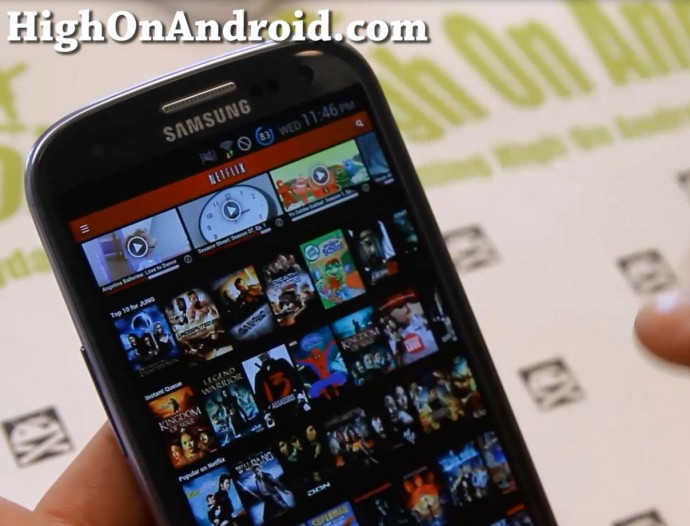
For those of you who want to run your favorite apps in Phone mode or Tablet mode (such as Netflix shown above running in tablet mode with a Galaxy S3), scale fonts, keep screen ON, or even change language on “app basis”, you can do it easily on “any” rooted Android smartphone or tablet device running Android 4.0.3 or higher. (ICS and Jelly Bean)
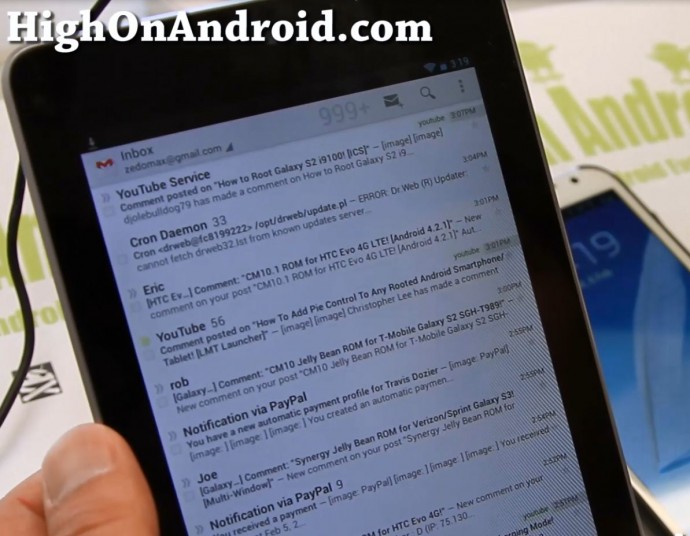
(My Nexus 7 running GMail in Phone Mode (normally is in Tablet Mode).
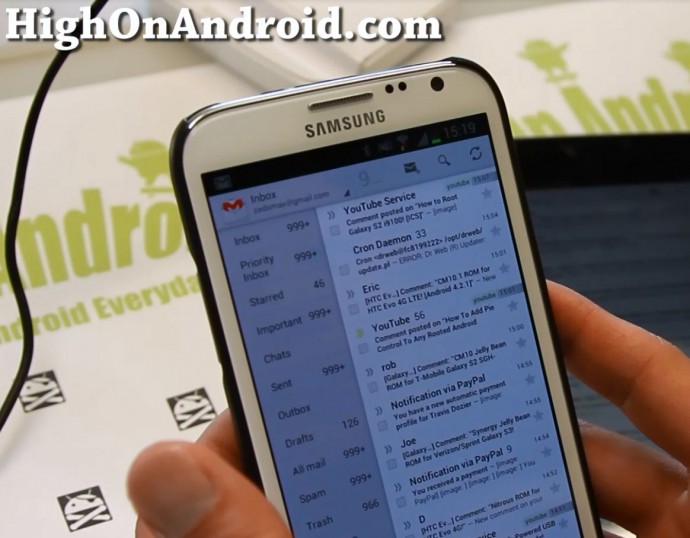
(My Note 2 running GMail in Tablet Mode.)
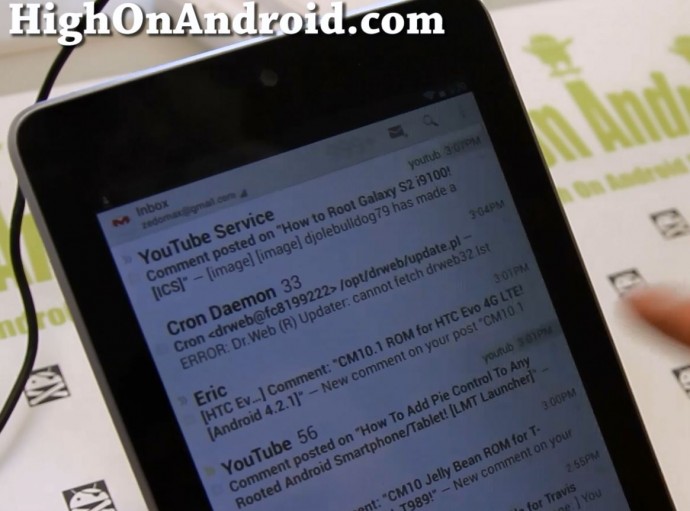
(My Nexus 7 with font scaled up)
How is that possible?
There’s apps called Xposed Framework Installer and Xposed App Settings, which allow you to make this happen just like if you were doing it with a ParanoidAndroid custom ROM.
So, if this is something you might be interested, (perhaps you want to make the fonts bigger on your GMail because you are farsighted, or run Netflix in tablet mode to see more titles on your phone, or maybe even keep your screen on while viewing non-downloadable flash videos on your browser) read on to follow the step-by-step guide.
Requirements:
– rooted Android smartphone or Tablet with Android ICS or higher. (4.0.3, 4.0.4, 4.1.1, 4.1.2, 4.2, 4.2.1)
UPDATE: For Android Lollipop, please follow how to install Xposed Installer on Lollipop instead!
Step 1. You will need to download the two apps, Xposed Framework Installer and Xposed App Settings(if you have trouble downloading as an APK file, download from here instead).
First install the Xposed Installer apk file after downloading. You can use ES File Explorer or your favorite file browser to open the file if you have trouble opening it. (Should be in your Download folder).
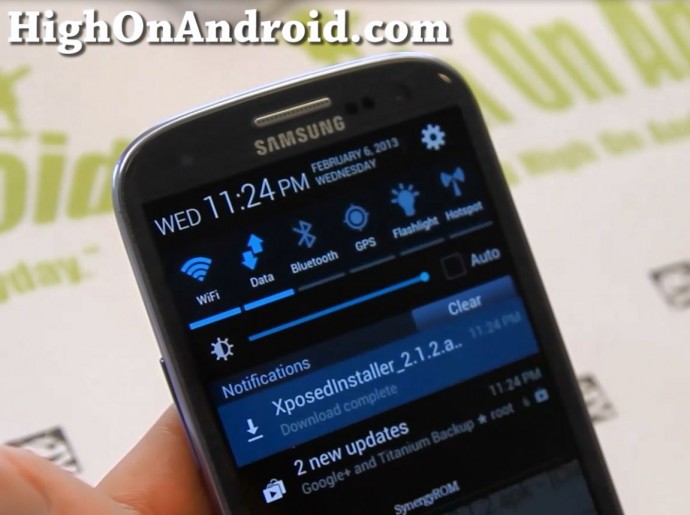
Step 2. Open Xposed Installer app and hit “Install/Update”.
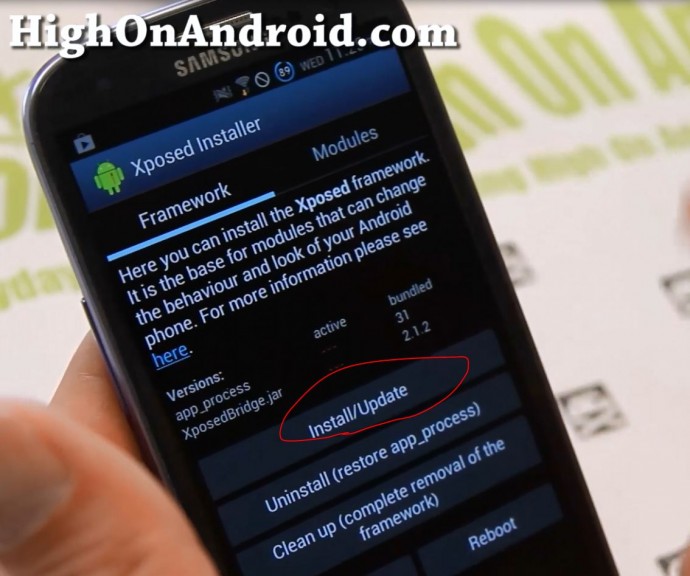
Step 3. Once installed, you will see “app_process” and “XposedBridge.jar” under the active tab. Go ahead and hit “Reboot” to reboot your Android phone or tablet.
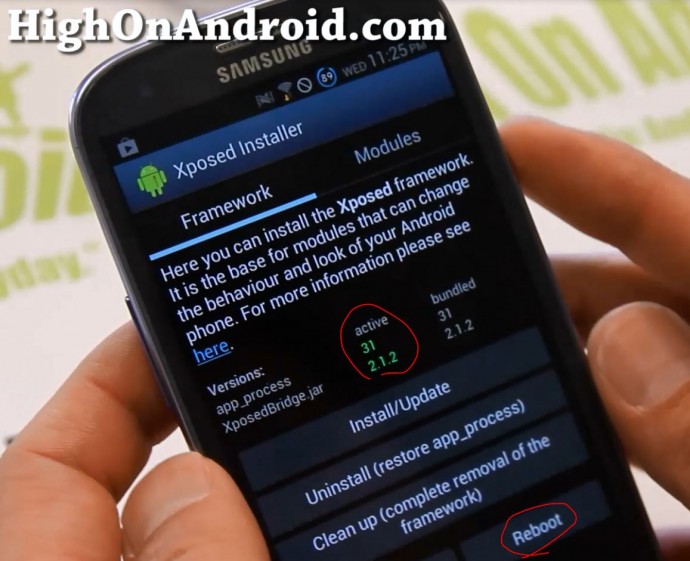
Step 4. Once rebooted, install the other Xposed App Settings apk file.
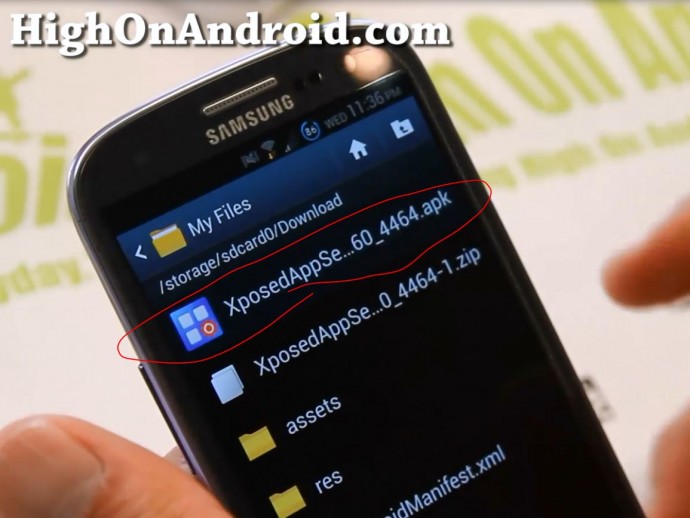
Step 5. Open Xposed Installer again, hit the “Modules” tab and make sure Xposed App Settings is checked ON. Then reboot one more time.
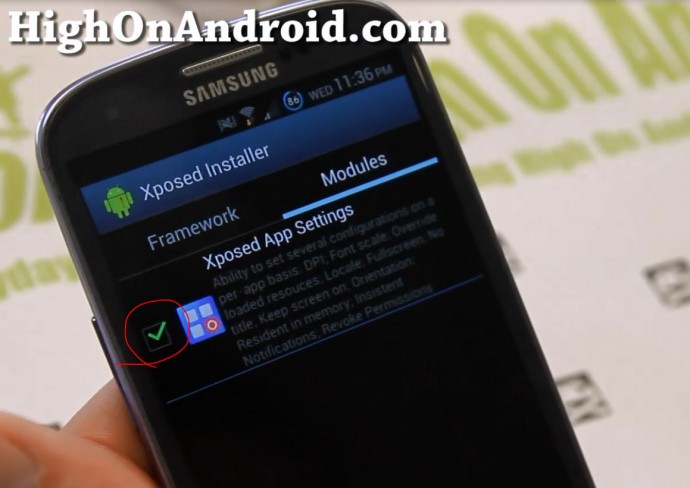
Step 6. Now you can open up Xposed App Settings app, then find your favorite app you want to modify to run in Phone or Tablet mode.
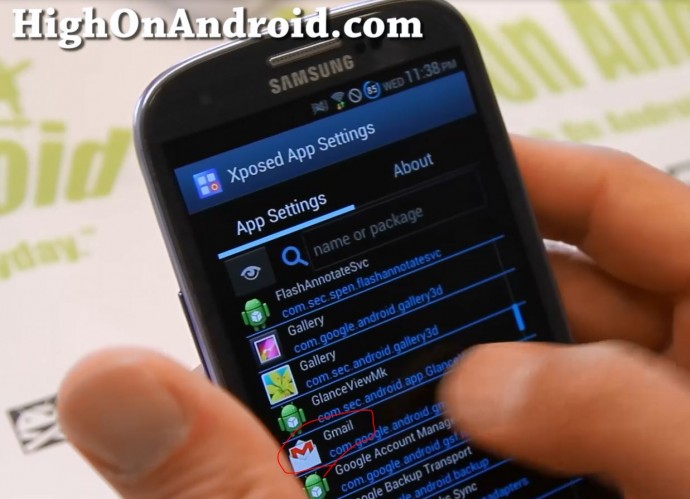
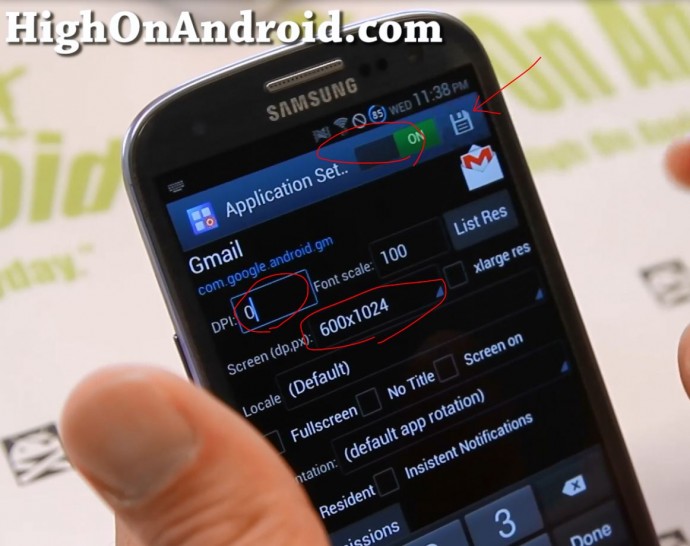
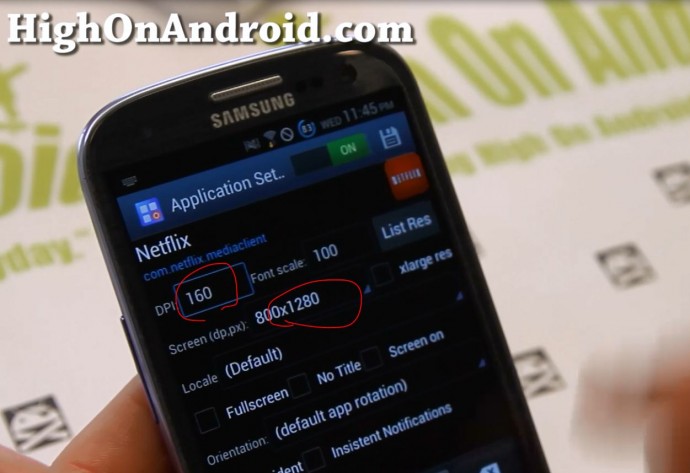
Step 7. First turn the settings to “ON” then change the DPI and Screen values to get tablet mode. You might have to play with these values to get it working fully in tablet mode. Once done setting, hit the “Save” icon at top right.
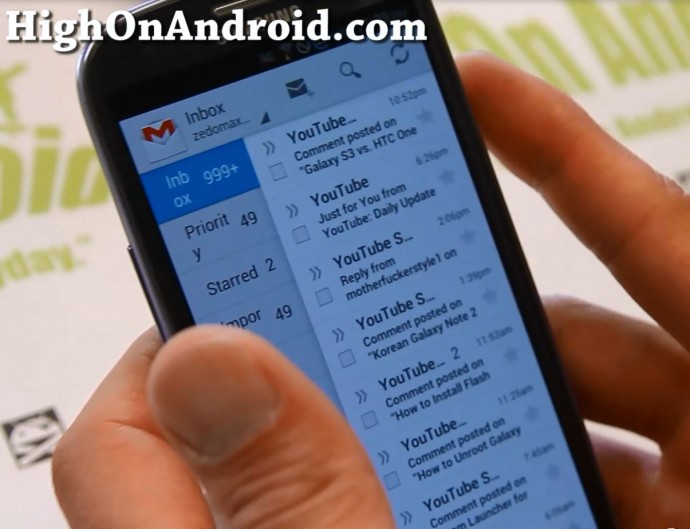
Step 8. Next open up your app to see if the changes have been committed.
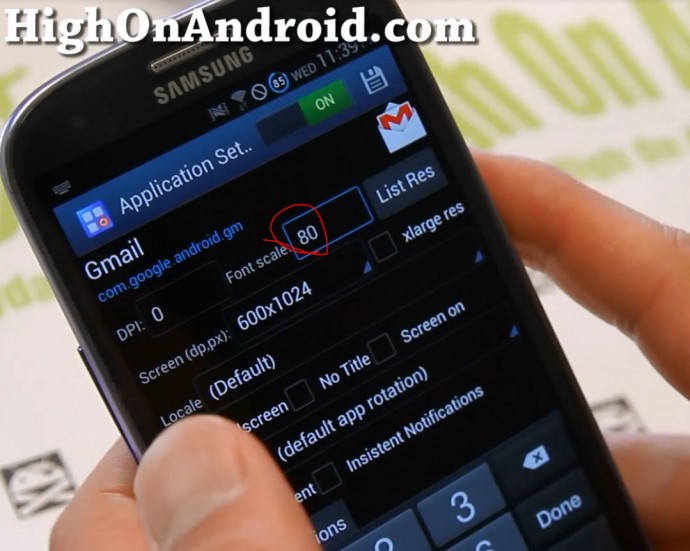
Step 9. You can also change the font size by changing the Font scale.
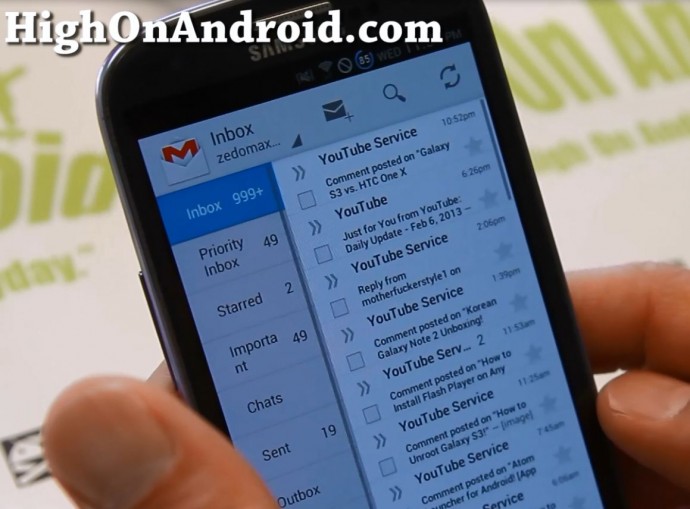
Step 10. Now, you can see the titles on your GMail better with Tablet Mode.
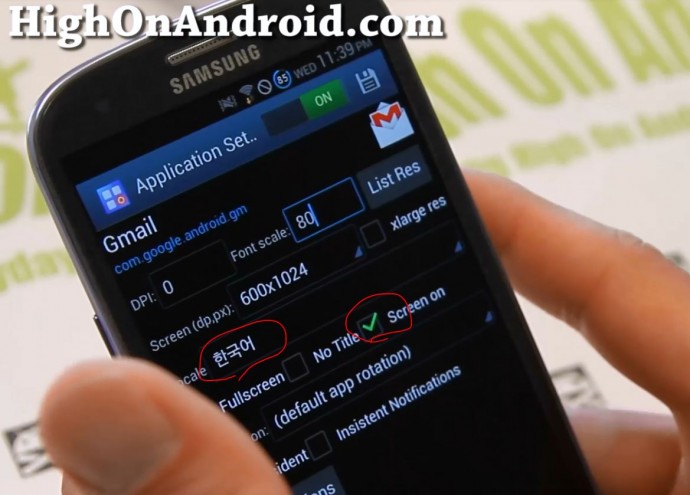
Step 11. Also you can change the language by changing the “locale” and keep your screen on continously while you use GMail by checking ON “Screen on”.
Step 12. Try it on another app like Netflix. I find Netflix default settings hard to navigate as titles are way too big.
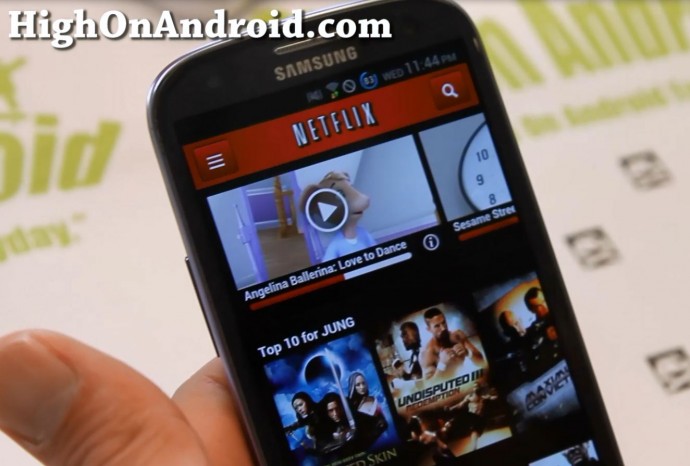
Adjust DPI and Screen settings to get Tablet Mode and see more titles!
I am sure you can find more reasons why Xposed App Settings can be more useful for your life. If you find some good ones, don’t forget to leave tips to others in the comments line, thanks! And stay high on Android!
Credits – Big shout out to creator of Xposed Framework rovo89 for the awesome work and also ParanoidAndroid Team for coming up with this idea in the first place.
Have a question?
Please post all your questions at the new Android Rehab Center at HighOnAndroid Forum, thank you for understanding!Join the HighOnAndroid VIP Fans List for free help from Max and discounts on Android accessories.